Text Group Editor Workspace
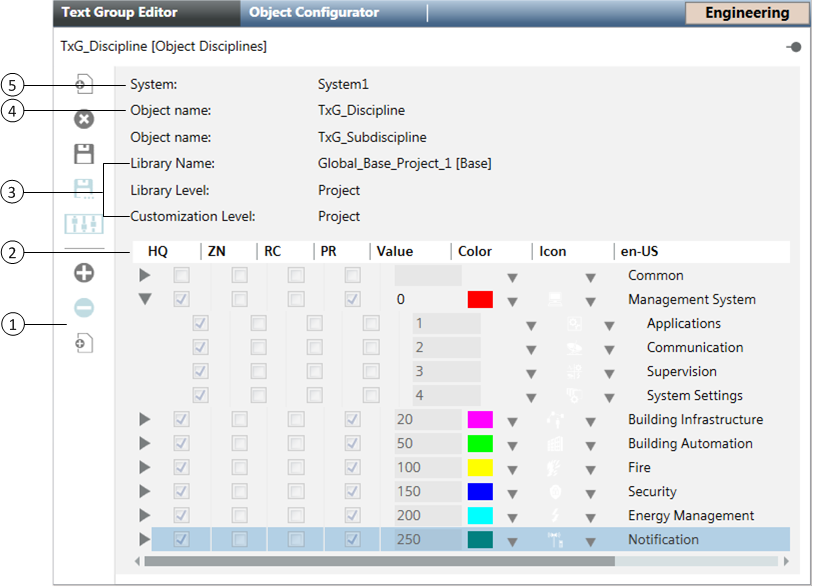
 

Item

Description

1

Toolbar
Contains the following buttons: Add new group, Delete group, Save, Save As, Customize, Add new row, Delete selected row, and Add Child Row.

2

Text List
Displays the Value, Color, Icon, and corresponding descriptive text for each entry in the selected Text Group.

3

Library Name
Displays the name of the library associated with the Text Group.

Library Level
Displays the library level associated with the Text Group.

Customization Level
Displays the current customization level, which determines at what level new Text Groups will be created in the selected library and whether or not you are able to modify or delete the selected Text Group. If the level of the selected Text Group is equal to or lower than the current Customization Level, you are able to modify and delete the Text Group. If not, the selected Text Group is read-only.

4

Object name
Displays the name of the Text Group you selected from System Browser. Text Groups that support child rows will display two object names—one for the parent, and one for the child.

5

System
Displays the name of the system the Text Group belongs to.


Information

NOTE 1:
When you save a new Text Group, it is saved to the library at the current Customization Level. When you use the Save As feature, the text group is saved to the library at the current Customization Level or lower. If customization has not been enabled for the selected library at the current Customization Level, the Add new group and Save As buttons are not available.
NOTE 2:
If the Text Group is at a library level above the current Customization Level, the Delete group button is not available.