Overview of Operator Tasks
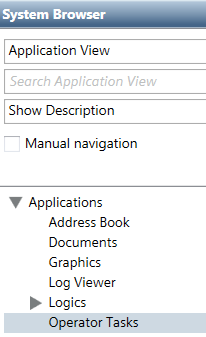
Operator tasks are located in Applications > Operator Tasks in Application View of System Browser.
Tasks Editor in Operating Mode
When you select the Operator Tasks object in Application View of System Browser, the Tasks tab displays. This contains the list of the operator tasks.
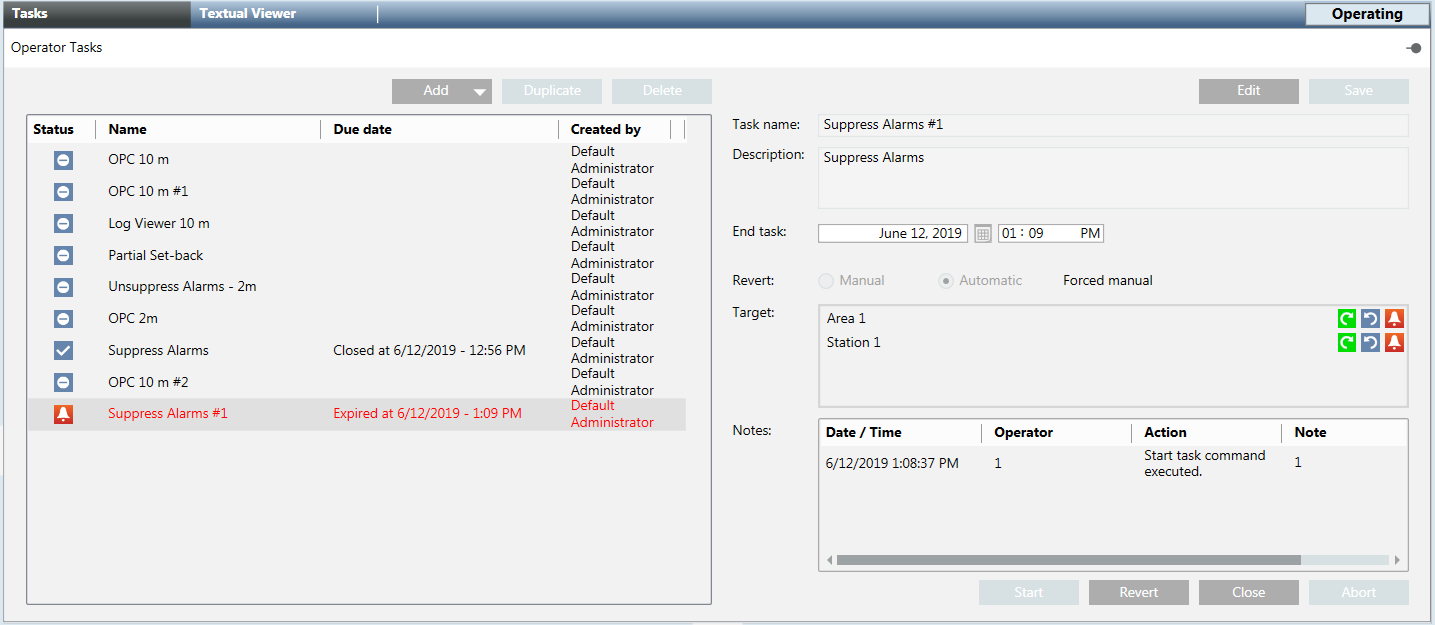
Each task occupies one row and comprises the following information:
- Task status and name
- When the last status change occurred (due date) and for what type of action
- Who created the task
You can sort tasks in the list as follows:
- Status:
Closed for missing license,Expired,Ready to be closed,Executing commands,Reverting commands,Waiting for conditions,Aborting,Running with exceptions,Running,Failed,Closed,Idle, andChecking rights. When sorting by status, tasks having the same status are sorted oldest on top. - Name: alphabetical order
- Due date
- Created by: alphabetical order
If you select a task, its details display on the right. If you hover over the target object, a tooltip displays its full path in System Browser. You can edit tasks data, start, abort, close, and do automatic or manual revert, provided that the configuration includes the revert mode (that is, returning to a former state. For example, in fire panels, from Test Mode to Normal Mode.)
Tasks are with the following status highlighted in red requires your attention: Closed for missing license, Expired, or Ready to be closed.

NOTE:
When the commands access authorizations are checked, the command is not executable on a target if:
The operator has no rights to view the target.
The operator has no access to
-The Property Group (Status, Configuration, Diagnostic, Ownership) of the target property that is commanded.
- The Command Group (Standard, Event, Advanced, Ownership) of the command to execute.
The target is not reachable.
Tasks Status
Before Project Restart | After Project Restart |
| The task status remains unchanged. |
| The task remains in this and a check of the rights is done again. If the operator who started the task is no longer valid or the validation profile requires the operator’s input, the task status becomes |
| The task remains in this status and the commands are executed again. If the user who started the task is no longer valid or the validation profile requires the user’s input, the task status changes to Failed, since it would not be possible to execute the commands successfully. |
| If the task expiration time is not elapsed, the task remains in this status following the standard workflow (that is, until the task expires or a command is executed on the task). If the task expiration time has elapsed:
|
| The task remains in this status and the revert commands are executed again. If the operator who executed the revert command is no longer valid or the validation profile requires the operator’s input, the revert command is not re-executed and the task immediately starts to wait for conditions. |
| If the maximum timeout to wait for the conditions is elapsed, the conditions are checked immediately, otherwise the task starts to wait for conditions, following the standard workflow. |
| The task status becomes |
Task Status Icons
|
|
|
|
|
|
|
|
|
|
|
|
|
|
|
|
|
|
|
NOTE: In this status, the condition will not be not verified. The operator can only close or start the task. If revert actions are available, the operator can also send the revert command. |
|
|
|
|
|
|


Command Status and Revert Icons
For each task, the command status of a each target is graphically provided in the Target list as follows:
| Unknown. The task was created but has not yet been executed. |
| Executed. The task has been executed. |
| Exception. The execution of one or more tasks failed. |
| Failed. The execution of all the tasks failed. NOTE: Hover on the icon to know the reason why the tasks failed. |


If revert actions are available, also the relevant status is graphically provided in the Target list next to the command status as follows:
| Unknown. The task was created but the revert action has not yet been executed. |
| Executed. The revert action has been executed. |
| Exception. The execution of one or more revert actions on tasks failed. |
| Failed. The execution of all the revert actions failed. NOTE: Hover on the icon to know the reason why the revert action failed. |


NOTE:
The icon  next to the command status (or revert action) of a target displays when the task expired but the condition associated the target command was not verified.
Tasks Notes
Operators are prompted to enter a note for the following actions:
- Edit a task in
Runningstatus. (The operator’s comment is not required for tasks inIdlestatus.) - Start a task.
- Close a task.
- Revert a task.
- Abort a task.
Note that to see the full text of long notes, double-click the note to open the Operator Tasks dialog box.
The Notes list contains a maximum of ten notes. You can view more notes in the Detailed Log tab. See Viewing Operator Tasks Detailed Log.
Operator Tasks Reminders
The management station generates events in Event List to inform you if:
- A new task is in
Runningstatus. In this case, the event is automatically cleared from Event List when the task status changes. - The task status is
ExpiredorReady to be closed. Such events disappear from Event List when you acknowledge them and close the relevant tasks.
In Event List, such events are grouped together under a parent event, one for Operator Tasks.Running Tasks, one for Operator Task.Expired Tasks (Ready to be closed), and one for Operator Tasks.Expired Tasks Exception, each one acting as a container of the corresponding events. The Counter column indicates the total number of occurred notifications per type. This counter automatically increments whenever the same event occurs.
In case of revert actions when the revert command is executed the event is cleared from Event List and a new event is generated depending on the task status.
Validation of the Changes to Operator Tasks
You might be prompted to validate the following actions: edit, start, close, or delete operator tasks. In particular, the validation comment is taken as operator tasks note when you start a task, close a task, or edit a task in running or expired status. In these cases, you are not prompted to enter the typical task note.
