Operator Tasks Integration
Tasks Editor in Engineering Mode
When you select the Operator Tasks object in Application View of System Browser, the Tasks tab displays. This contains the list of the operator tasks.
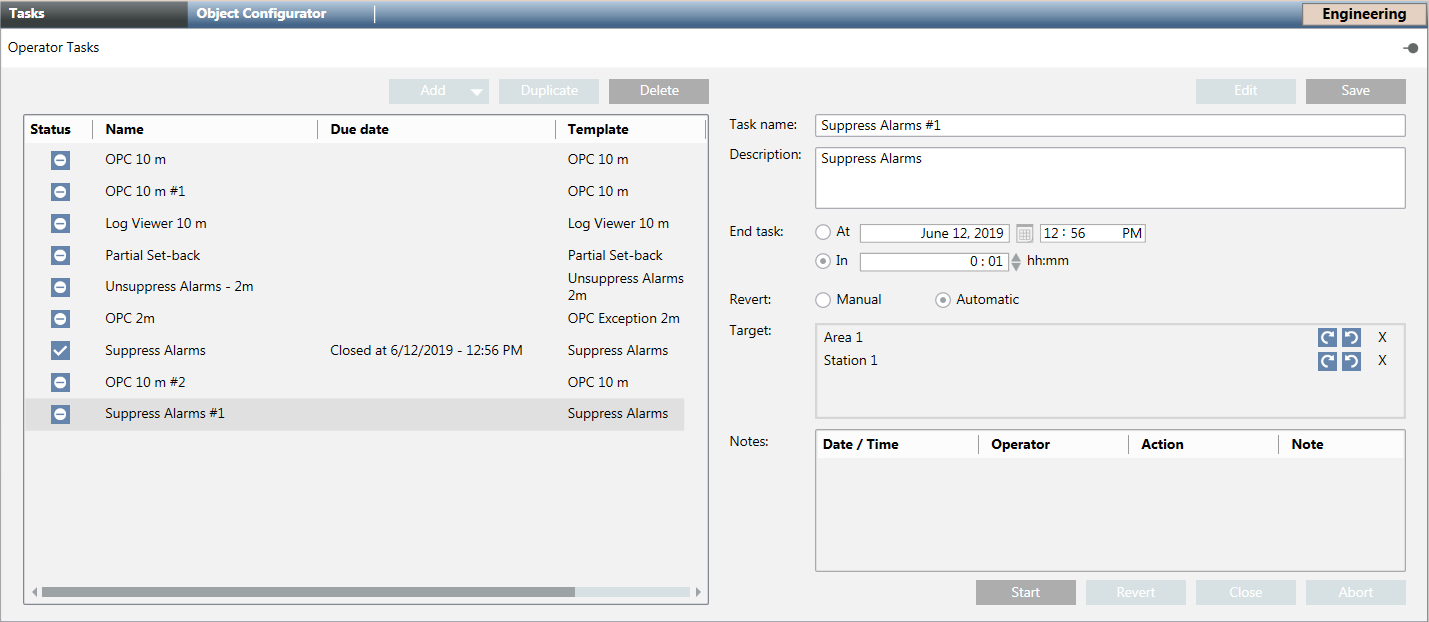
Each task occupies one row and comprises the following information:
- Task status and name
- When the last status change occurred (due date) and for what type of action
- Template name
- Who created the task
By selecting a task in the list, its details displays on the right. If you hover over the target object, a tooltip displays its full path in System Browser. By double-clicking the Task name label for the selected task, the relevant template displays in the Tasks tab.
Operator Tasks License and Access Rights
The Operator Tasks extension is covered by license. Check that the required license is available in the system, otherwise operators may not be able to configure and handle operator tasks. For instructions, see Checking Licenses. In case of license issues:
- If the license is missing or expired and tasks are not being edited, an event is generated to inform the users about the issue.
- If the license expires, tasks are highlighted in red. Also, tasks in the following statuses after five minutes are automatically forced to

Closed for missing license: 
Checking rights
Executing commands
Running
Running with exception-
Reverting commands 
Waiting for conditions
Aborting- When license is back, any running tasks remain in
Closed for missing license. Those tasks cannot be restarted. No other action is possible, except duplicating or deleting those tasks. - In Related Items even though the task template is available, when you click it, the Secondary pane opens but the Tasks application is not available.
- If the license is missing or expired and the Operator Task object was not selected in System Browser, when the user selects it, the Tasks application will not display in the Primary pane, while in the Operation tab, the Status will indicate
Missing license. - If the license is missing or expired and the Operator Task object was selected in System Browser, editing fields become read-only and buttons are disabled.
- If the license expires while a task is being edited:
- A message displays and your changes are lost.
- In the Operation tab, the Status will indicate
Missing license.
Even when the license is installed, the availability of the Tasks tab depends on the operator’s user group rights. If you do not configure appropriate application rights for the operators, they will not have access to this feature at all. For instructions, see Setting Operator Tasks Application Rights.
Validation for Operator Tasks
If you set the validation profile for the Operator Tasks object or one of the target tasks is subject to validation, operators will be prompted to validate the following actions: edit, start, revert, abort, close, or delete operator tasks.
Distribution for Operator Tasks
Each system can see only the local templates that is, those ones configured in the local libraries.
For a task you can link target objects that belong to anyone of the systems of a distributed configuration.
